Mobile Space Game Controls
On this page
Every game on Space Arcade Games can be played on a phone or tablet. On touch devices a control pad appears below the game, and several games also let you steer by dragging directly on the play area. This guide explains each type of touch control, which one to pick when a game offers a choice, and how to keep the page still and the game running smoothly.
The four kinds of touch control
Touch input in our games falls into four groups. Knowing which one a game uses tells you where to put your thumbs before you press Start.
| Control | How it works | Games that use it |
|---|---|---|
| On-screen joystick | Push your thumb in a direction to move that way | Space Shooter, Space Survival, Meteor Escape, Space Miner, Alien Escape, Rocket Rush, Alien Attack |
| Action buttons | Labeled buttons such as FIRE, MINE, JUMP, THRUST or LAUNCH | Space Shooter, Space Miner, Cosmic Runner, Rocket Landing, Gravity Orbit |
| Drag on the game | Your finger on the play area steers the ship | Asteroid Dodge, Star Collector, Daily Space Challenge |
| Tap or press on the game | A tap, or press and hold, is the action | Planet Hopper, Cosmic Runner, Galaxy Defender, Gravity Orbit |
Some games offer more than one of these. Star Collector, for example, accepts both the joystick and dragging, and Asteroid Dodge has left and right touch buttons as well as drag steering.
Getting comfortable with the joystick
A virtual joystick has no physical edge, so your thumb cannot feel where the center is. That is the main reason touch movement feels loose at first. A few habits help:
- Keep your thumb down. Lifting and replacing your thumb resets your reference point. Slide instead of tapping.
- Use small movements. You rarely need to push far from center; short pushes give finer control.
- Return to neutral deliberately. In dodging games, drifting through a gap and then over-steering is a common way to lose a life. Bring your thumb back to center once you are where you want to be.
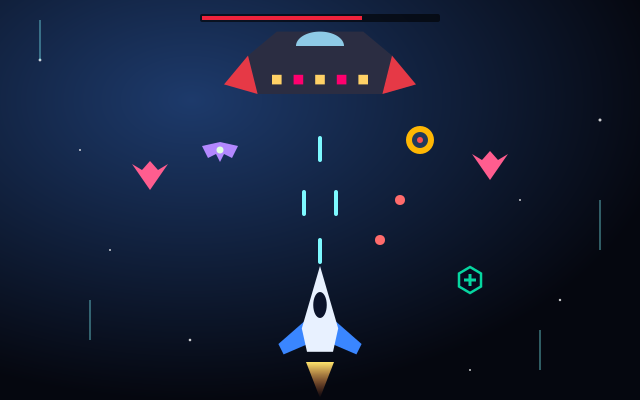
In Space Shooter the natural grip is joystick on one thumb, FIRE held with the other. Since firing is continuous while held, you can keep that thumb planted and give all your attention to steering.
Drag controls: precise but covering
Dragging on the game area is often the most precise touch option, because the ship follows your finger rather than an abstract direction. The trade-off is that your finger covers part of the screen.
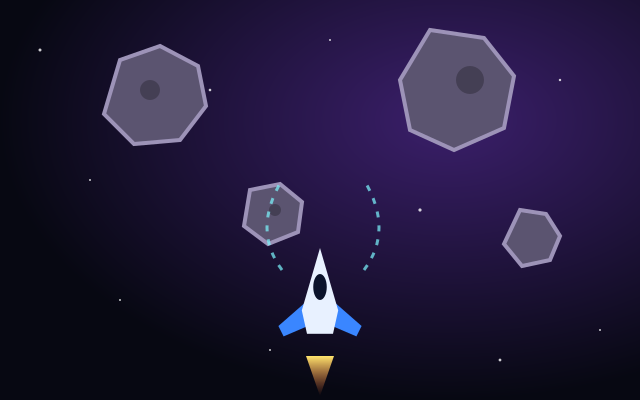
In Asteroid Dodge your ship sits near the bottom and asteroids fall from above, so a finger held below or beside the ship hides very little of what matters. In Star Collector you roam the whole screen, so a finger can easily cover a comet crossing your path. Try holding your finger slightly below the ship rather than directly on it, so you can see what is ahead. If you find yourself losing lives to things you never saw, switch to the joystick for that game and compare.
Tip: On a tablet, dragging is usually excellent because the screen is big enough that your hand hides a smaller share of it. On a small phone, the control pad below the game often keeps the view clearer.
Tap, hold and release games
One-button and aim-and-launch games are often the most comfortable on touch, because a tap is as precise as a key press.
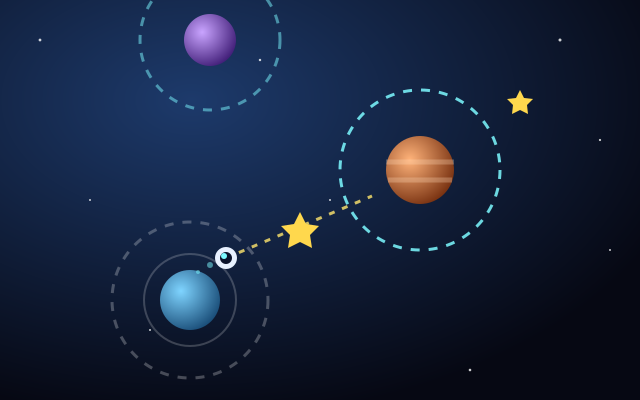
- Planet Hopper: a single tap launches your pod along its orbit direction. Tap with a relaxed finger and watch the target planet, not your hand.
- Cosmic Runner: tap or use JUMP; holding gives a higher jump, and a second tap in the air is a double jump.
- Gravity Orbit: point with your finger to aim, then press and hold on the game (or the LAUNCH button) to charge power and release to launch. Lift your finger cleanly; sliding it as you release can shift your aim.
- Galaxy Defender: drag or tap on the game to aim and fire outward from the planet.
Portrait or landscape?
Because the control pad sits below the game, orientation changes how much room the game and the pad each get. There is no single right answer, so try both on your device:
- Start a game in portrait and check that you can see the whole play area and the full pad without scrolling.
- Rotate to landscape and compare. Wider screens can make the game larger, but may push the pad further down.
- Pick the orientation where both your thumbs rest on the controls and the game is fully visible, then lock rotation in your device settings so a tilt mid-run does not flip the layout.
Rotation lock matters more than it seems. Leaning back on a couch during a tense run is enough to trigger a rotation on many phones.
Stopping the page from scrolling
On a phone, a swipe normally scrolls the page. Game areas and control pads are designed to take touches for the game instead, but a touch that starts just outside them will still scroll. If the page moves while you are playing:
- Start each touch inside the play area or on a control, not on the margin around it.
- Before pressing Start, scroll so the game and pad are fully in view; you should not need to scroll during a run.
- Avoid pull-to-refresh gestures near the top of the screen. If a refresh happens, the run is lost, though your personal best stays saved in the browser.
- If the page does shift mid-run, one small, deliberate scroll to bring the game back into view is better than several frantic swipes.
Browsers deliver finger, mouse and pen input through a shared model called pointer events, described in MDN's Pointer events documentation. That is why the same drag steering works with a finger on a phone and a mouse on a desktop.
Battery and performance tips
Our games are drawn with the Canvas API and updated once per display frame, so a busy phone can struggle to keep up. If a game stutters:
- Close other tabs and apps. Background work competes for the same processor.
- Check low-power mode. Battery-saving modes on many devices reduce performance, which can make fast games feel choppy.
- Let a hot phone cool down. Devices slow themselves down when warm, and charging while playing adds heat.
- Avoid switching apps mid-run. Browsers usually suspend animation in hidden tabs, which saves battery, but coming back to a fast game without warning is an easy way to lose a life.
- Turn sound off if you prefer. The sound toggle is in every game and your choice is remembered.
Once touch feels natural, read our overview of space game control schemes to see how the same games play on other inputs, or our keyboard controls guide if you also play on a computer.